

- The router node automatically adds a Default case rule. If no rule conditions are met, the journey continues to the linked node.
- Rules are evaluated in the order placed in the router. When a rule condition is met, the journey continues to the linked node, and no other rule conditions are evaluated.
- You can add up to 10 rule conditions to the router node.
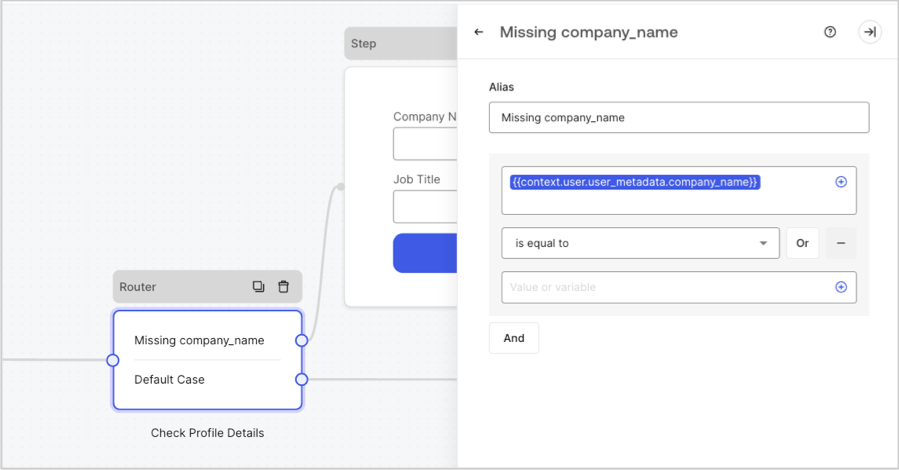
Add a router rule
To add a rule condition, follow these steps:- From the Form editor, select a Router node to open its settings.
- Select + New Rule.
- Expand the newly created rule.
- To label the rule, add an Alias.
- Add a variable using the + icon.
- Select the rule operator for the variable.
- Add the value or variable the rule must meet.
- Link the new rule to the corresponding step or flow node.
- Select Publish to save.
- We recommend you define a rule alias to easily identify each rule in the router node.
- You can select from a number of rule operators to evaluate operands. For example, you can set first_name
is equal toJane. - Operands can be static values or variables.
- A rule can have
ANDandORoperators for further conditional logic evaluation. - After adding a rule, make sure you link it to its desired node.
Available rule operators
The rule operators are:is greater thanis greater or equal thanis less thanis less than or equalis equal tois different toincludesdoes not includestarts withends withexistsdoes not existis nullis not nullhas not valueis trueis false